Build the Plan. Publish the Budget.
Planning is where you build the budget you intend to run, for next year or up to five years out. Start from your history, a projection, your current budget, or a file. Shape it with assumptions and initiatives, then publish the plan you pick as your live budget.
planned month by month
never a blank sheet
published when you choose
Sound Familiar?
The Old Way
- → Each new budget starts as an empty spreadsheet, every single time
- → Assumptions live in someone's head, or in a tab nobody reads
- → The hiring plan and the budget disagree by a quarter
- → Every version is a separate file, and nobody is sure which one is current
The MyRunwayHealth Way
- → Every plan starts from real numbers: your history, a projection, your current budget, or a file
- → An assumption is a rule on a line, and every rule is listed in one place
- → Decisions you modeled as initiatives are pulled in, not retyped
- → Duplicate a plan to try another version, then publish the one you pick
What Is Budget Planning?
Planning is where you build your budget for the next year, or up to five years ahead. You can keep several drafts and open each one. When you publish one, it becomes your live budget: the one the rest of MyRunwayHealth reads.
First
Model a Decision
A hire, a pivot, a new market. Initiatives are where you ask “what if” and see what a decision does to your runway, cash and burn.
How Initiatives work →Then
Build the Plan
Choose a starting point, shape the numbers with assumptions, and pull in the initiatives you have decided on. This is the page you are reading about.
Finally
Run the Budget
Publish a plan and it becomes your live budget, tracked against your actuals and updated daily.
How Budgeting works →Planning is not scenario modeling. What-if lives in Initiatives. A plan is the set of numbers you commit to.
Step 1
How Do You Start a Plan?
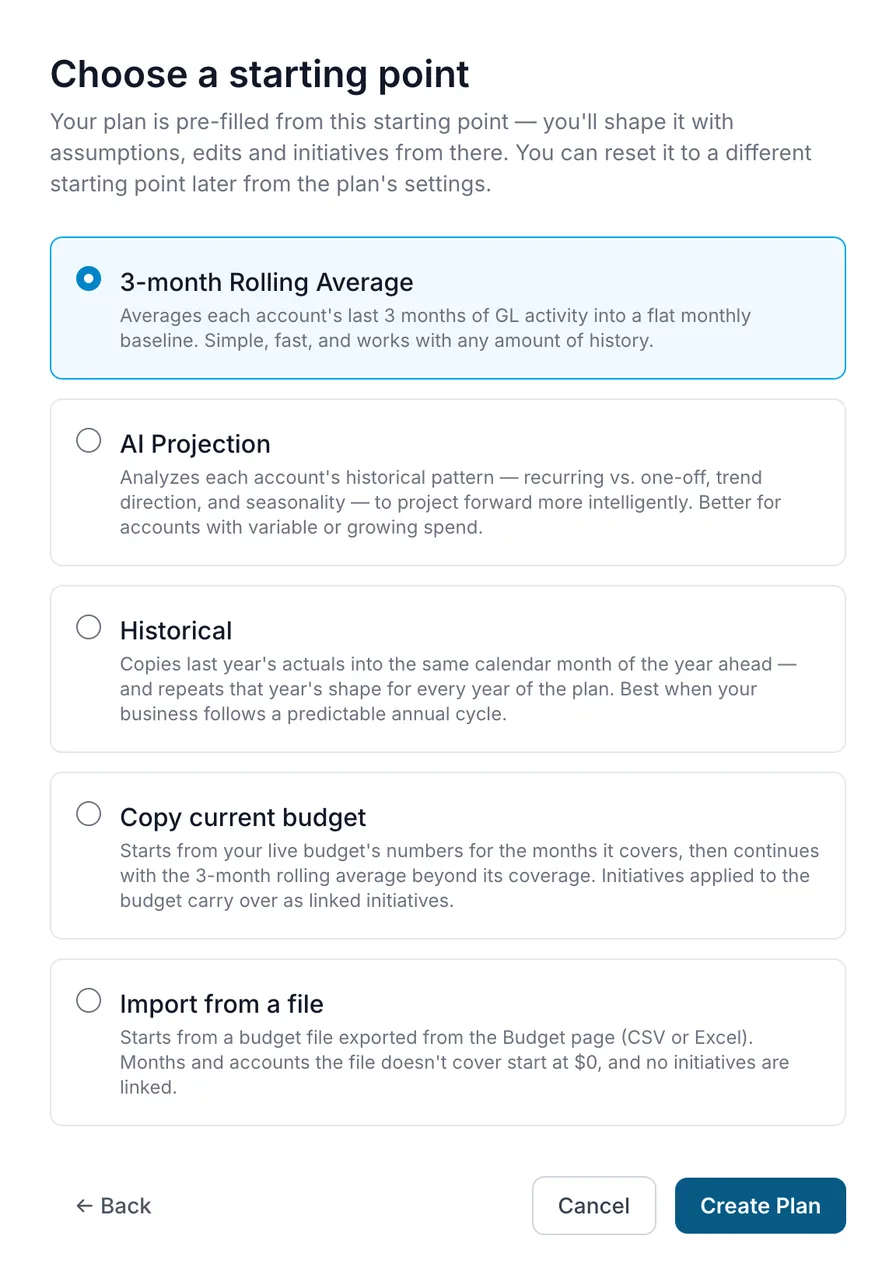
Choose New, pick the months you are planning (any range of up to 60 months, starting this month or later), and choose where the numbers start. Every plan starts from real numbers, never a blank sheet. Which of the five starting points you are offered depends on your data, your permissions, and what is switched on for your company.
- ✓ 3-month rolling average. Each account's last three months, carried forward as a flat monthly baseline. Works with any amount of history.
- ✓ AI Projection. Reads each account's pattern (recurring or one-off, trend, seasonality) and projects it forward. Where available; needs at least 12 months of history.
- ✓ Historical. Last year's actuals, month for month, repeated for each year of the plan. Needs a full prior year of history.
- ✓ A copy of your current budget. Your live budget's numbers for the months it covers, with its initiatives carried over. Needs a budget to copy.
- ✓ A budget file. Export our template from the Budget page, fill in your numbers, and import it, in Excel or CSV. Needs permission to import and export.
Changed your mind? You can reset a plan later to one of the first four starting points. Resetting clears your edits and assumptions.
Step 2
Set an Assumption Instead of Typing Every Month
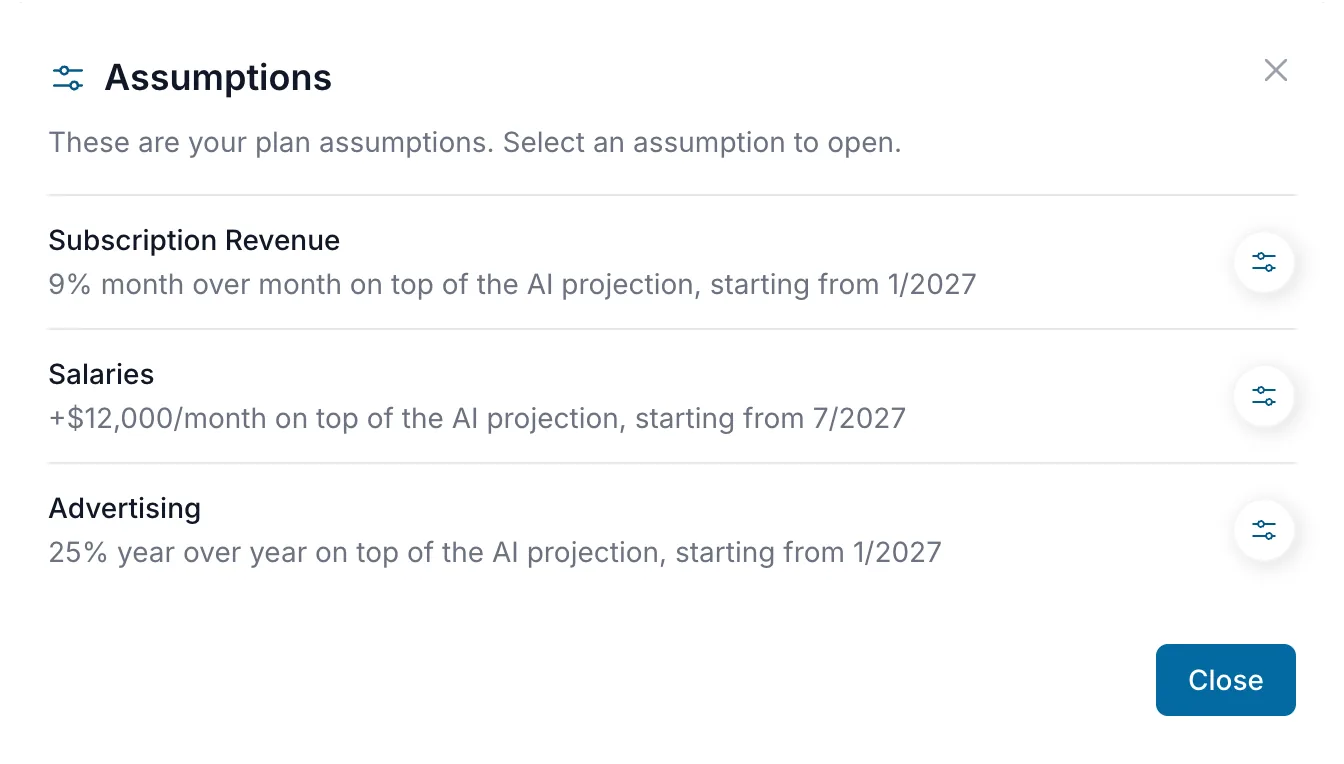
Every line item and month is a cell you can type in. When a line follows a rule, set the rule once. An assumption fills the row from the month you choose, so a decision never hides inside a formula.
- ✓ A percentage change, month over month or year over year
- ✓ A fixed amount added to every month
- ✓ A custom starting amount that grows (or declines!) by the percentage you set
- ✓ Watch the forecast update before you apply the rule
- ✓ See every rule you have set in one list
- ✓ Leave a comment on a cell to explain a number to your team
Step 3
Pull In the Decisions You Have Already Modeled
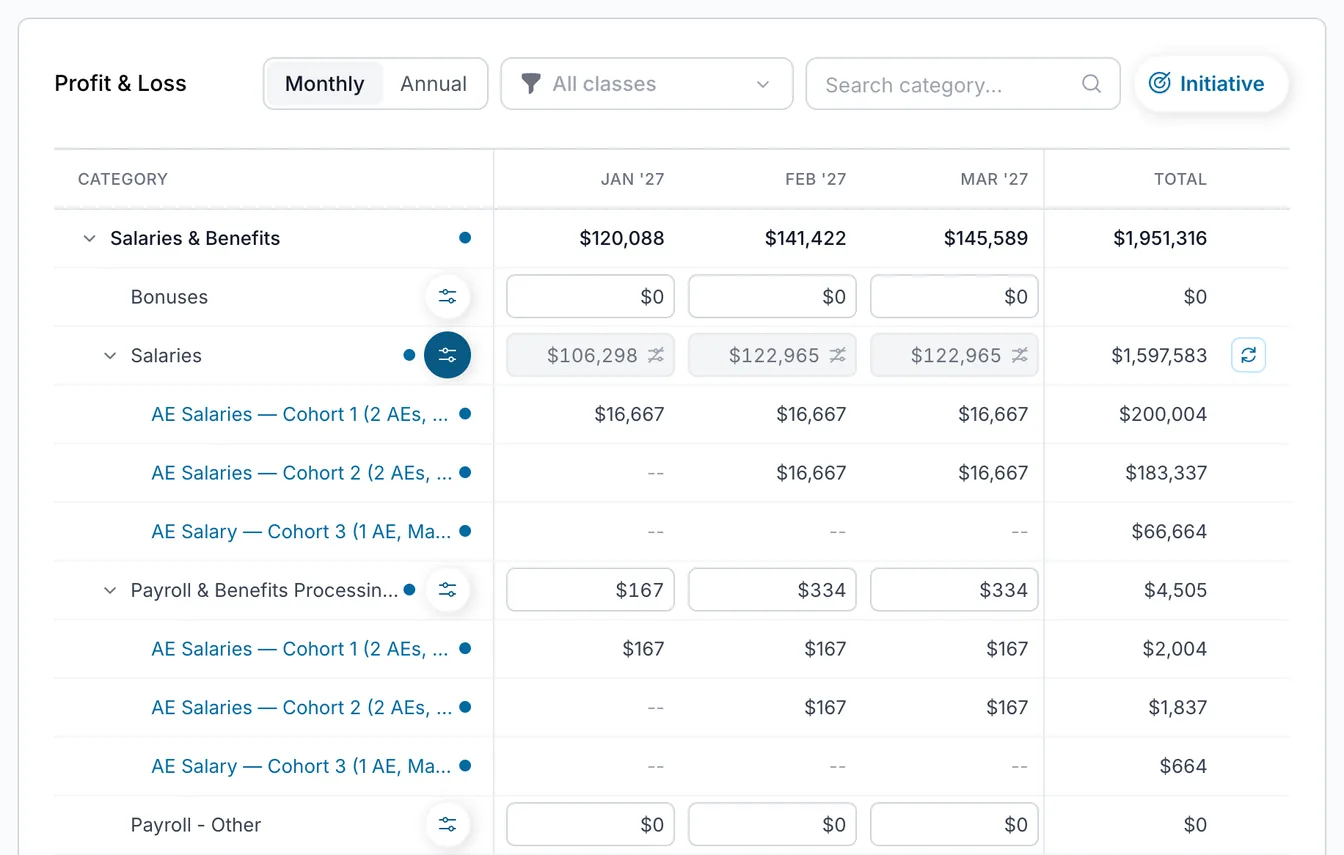
Initiatives are where you work out a decision before you commit to it. Once you have decided, add the initiative to your plan. Its lines appear under the accounts they touch and count in the totals, with nothing retyped.
- ✓ Initiative lines are read-only in the plan. To change one, edit the initiative
- ✓ Your edits flow through to every plan that includes it
- ✓ A draft plan never touches your budget
Step 4
Want to See It Another Way? Duplicate the Plan.
Duplicate a plan and change one thing: a slower hiring pace, a later launch, a leaner budget. The original stays as it was, and you can keep several drafts and open each one.
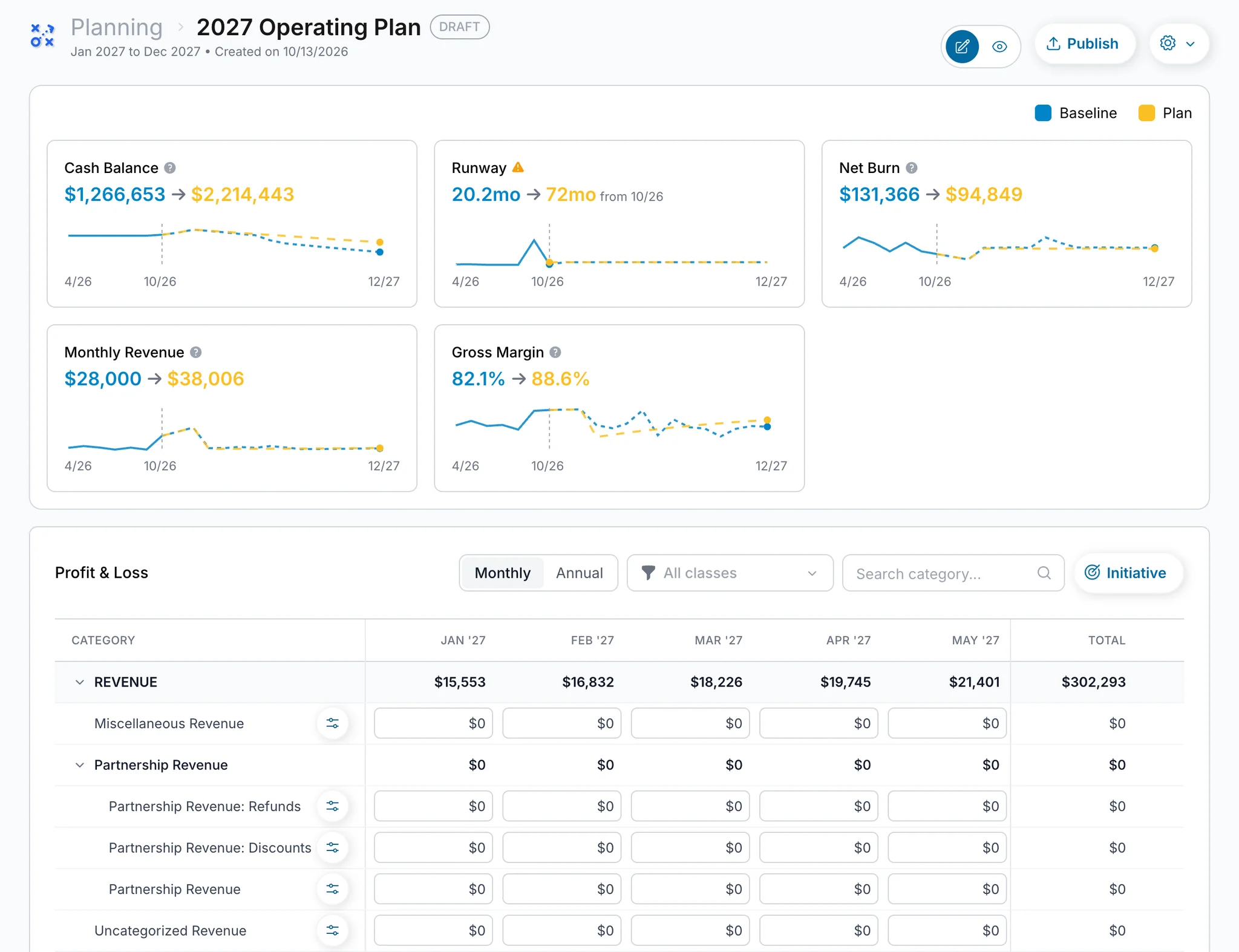
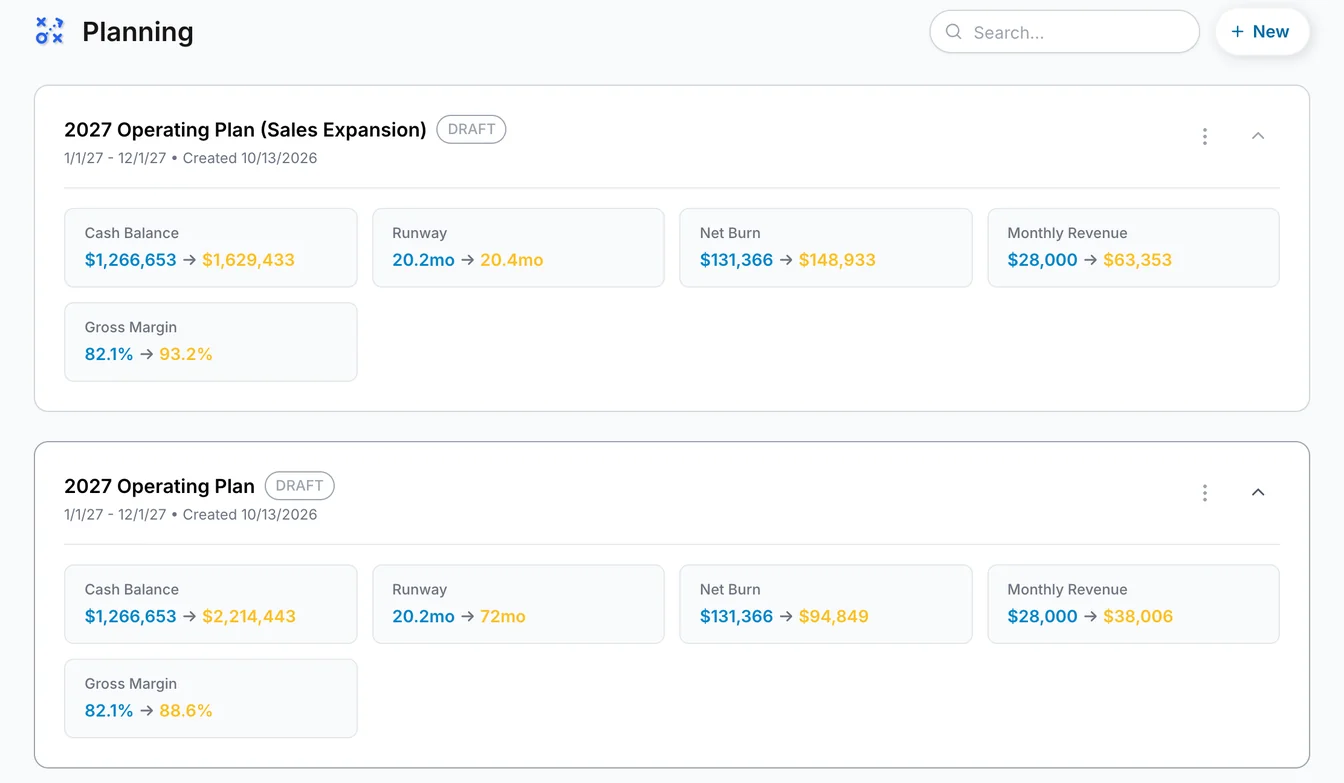
- ✓ Each plan shows what it does to your cash balance, runway, net burn, monthly revenue and gross margin, next to your baseline
- ✓ Expand any plan in the list to see those numbers without opening it
- ✓ Rename a plan, change its dates, or reset its starting numbers
- ✓ Preview a plan's total income, expenses and net income before you publish
Step 5
Publish the Plan You Picked. It Becomes Your Budget.
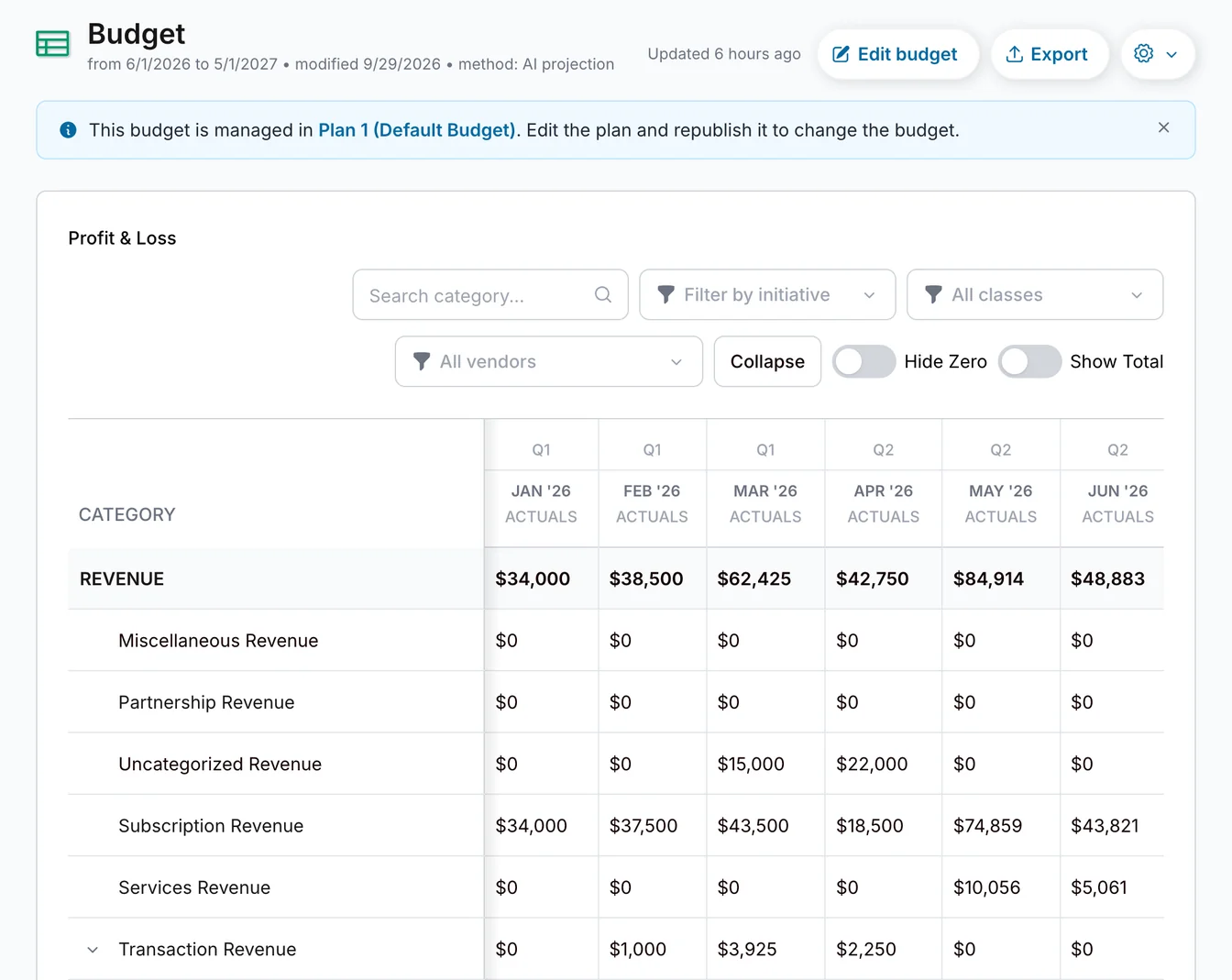
When a plan is right, choose Publish. That plan becomes your live budget: the numbers you run the business against.
- ✓ Your budget is tracked against your actuals, with variances updated daily
- ✓ Your dashboard's forecast follows the budget you published
- ✓ Need to change course mid-year? Edit the plan and republish
- ✓ The Budget page tells you when the plan has changes you have not published
Classes
Track Classes in Your Books? Plan by Class Too.
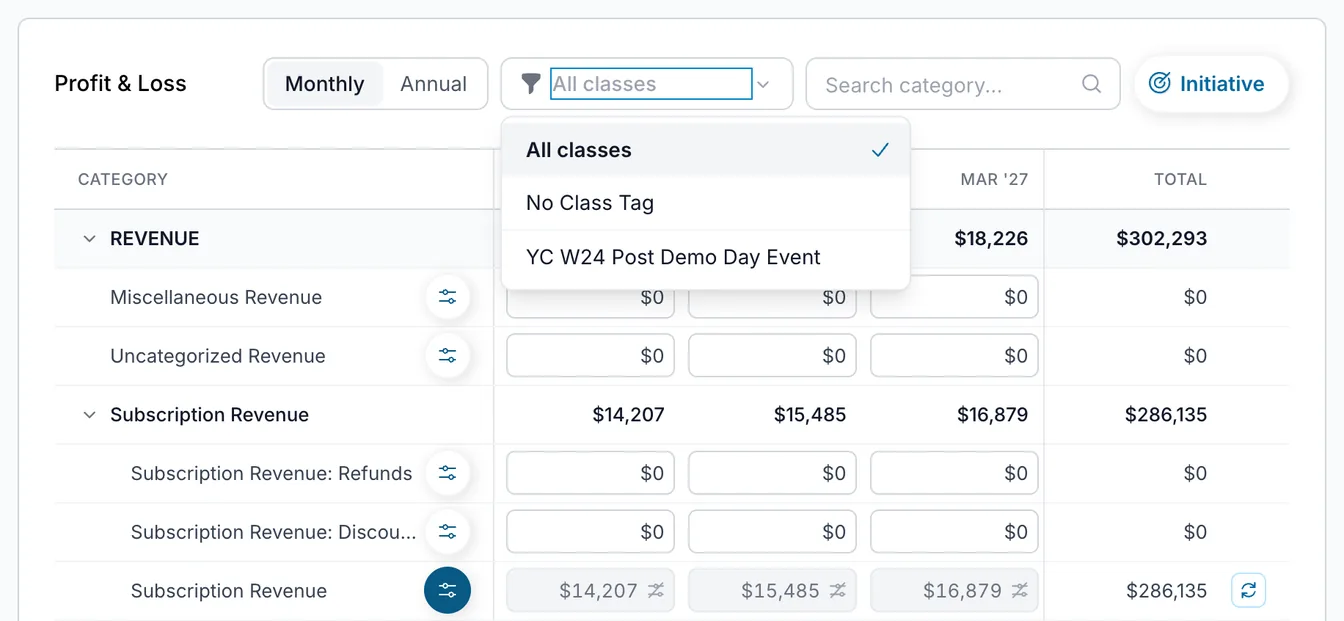
If you track classes in your accounting system, such as business units or programs, they come with you. Choose a class above the plan and you are looking at that class's numbers alone.
- ✓ Filter a plan to one class, or to everything without a class tag
- ✓ Parent classes include their children. Your classes, plus anything without a class tag, always add up to the company total
- ✓ Export while a class is selected and you get that class's sheet. Import it back and only that class changes
- ✓ Put an initiative in a class, or split it across several by percentage
- ✓ Cash balance and runway stay company-wide, because cash is not held by class
Already Have a Budget in a Spreadsheet?
Bring it in with our import template, and take your plan back out whenever you need it.
Import
Imports use our template. Export it, fill in your numbers, and import it into a plan, in Excel or CSV. The numbers arrive as edits on the plan, so you can review them, change them or revert them before you publish.
Export
Export downloads the plan as an Excel file, already in the template's layout. Work on it outside the platform, or share it with someone who is not on it, then import it back.
Imports use our template, which you can export, fill in and import. If your budget is in another layout, copy your numbers into the template first.
Planning Questions
What is Planning in MyRunwayHealth? +
How far ahead can I plan? +
Where do a plan’s starting numbers come from? +
Can I bring in a budget I already built in a spreadsheet? +
Is Planning the same as scenario modeling? +
Can Merlin help me build a plan? +
Can I re-forecast in the middle of the year? +
Is Planning included in my base subscription? +
One plan, one price. See pricing →
Merlin
Plan With Merlin
Ask Merlin in plain English to start a draft plan from your history, a projection or your current budget. Then ask it to change a month, set an assumption, duplicate the plan to try another version, or leave a comment for your team. Ask it what a plan does to your cash balance, runway and burn, and it compares the plan with your baseline.
- ✓ Deleting a draft or discarding unpublished edits waits for your click
- ✓ Merlin never publishes. Publishing a plan is always your choice, on the Plans page
- ✓ Months that have ended stay as they are
- ✓ Works for everyone on your team who can edit budgets
Powered by Merlin AI
Ask Merlin about your books, your budget and your plans in plain English, including how your budget compares with your actuals.
Meet Merlin →Planning Is Now in Beta.
Let us know if you’re interested in early access!